Set up Last Loonie
Once at a computer, then on your phone. After that, the phone does the month.
About 15 minutes
You’ll need
- A computer with a current browser, and your invite email.
- Your phone.
- Optional: your online banking login and a SimpleFIN subscription, US$1.50 a month or US$15 a year.
Step 1 · 10 minutesAt your computer
Open the link in your invite email. Last Loonie runs in the browser at app.lastloonie.ca; there’s nothing to install.
Bring in transactions with Accounts → Import a file (a CSV from your online banking), or connect your bank in step 2. You can use both.
Turn on sync
Sync puts your budget on up to five of your own devices. This computer becomes the first.
- Click Settings, the sliders icon at the foot of the sidebar. Sync across devices is inside the Backups card.
See this screen
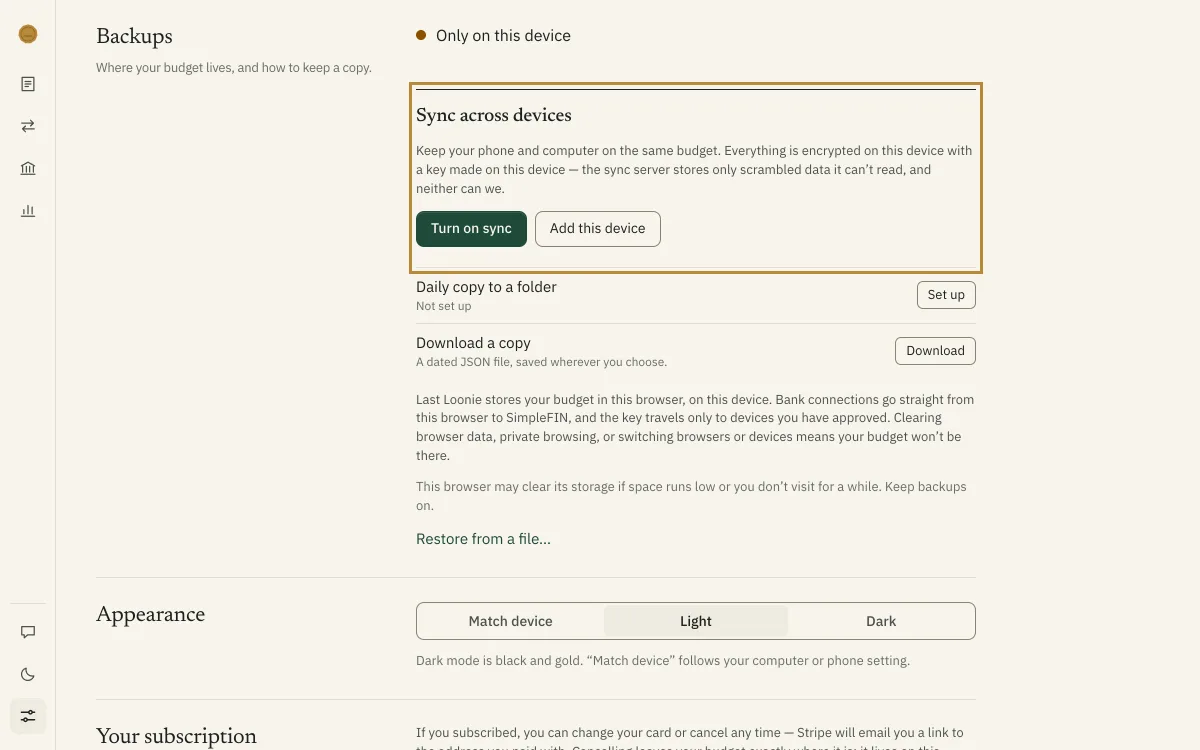
- Click Turn on sync, type your email address, and click Email me a code.
See this screen
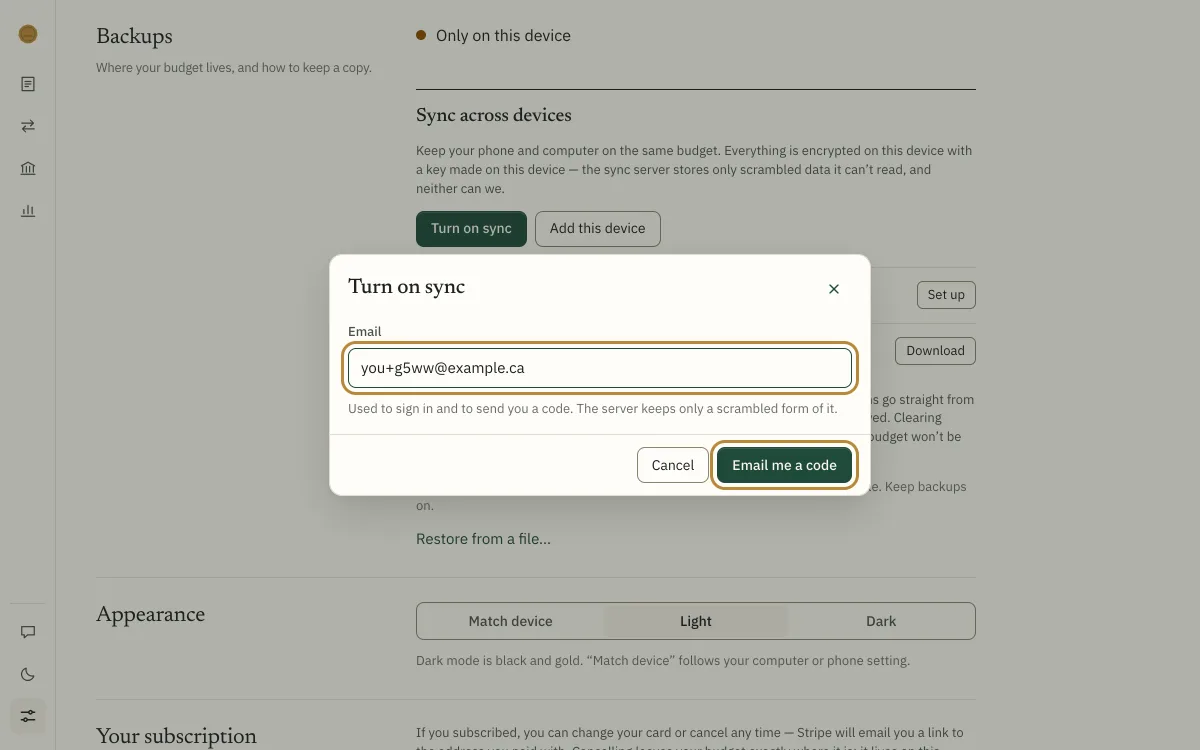
- Type the six digits from the email into Code from the email, and click Turn on sync.
- Your recovery kit appears. Click Download it, tick I’ve saved my recovery key somewhere safe, then Done.
See this screen
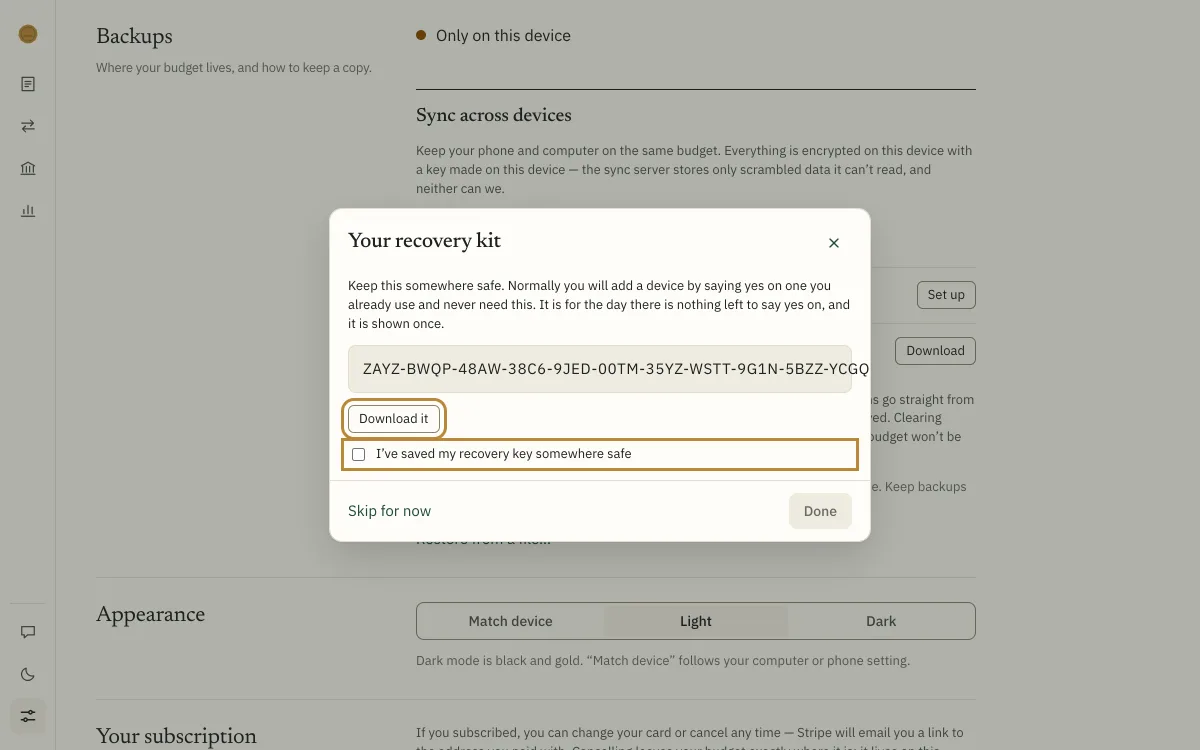
Your recovery kit is shown once
It opens your budget if you ever have no device left. Keep it somewhere private, away from your devices. Without it, nobody can open the copy we hold. Not you, and not us.
Step 2 · Optional · 5 minutesConnect your bank
SimpleFIN reads your transactions and balances, and can’t move money. Your bank password goes to your bank, never to us. Rather not? Skip this step and use Accounts → Import a file instead.
At SimpleFIN
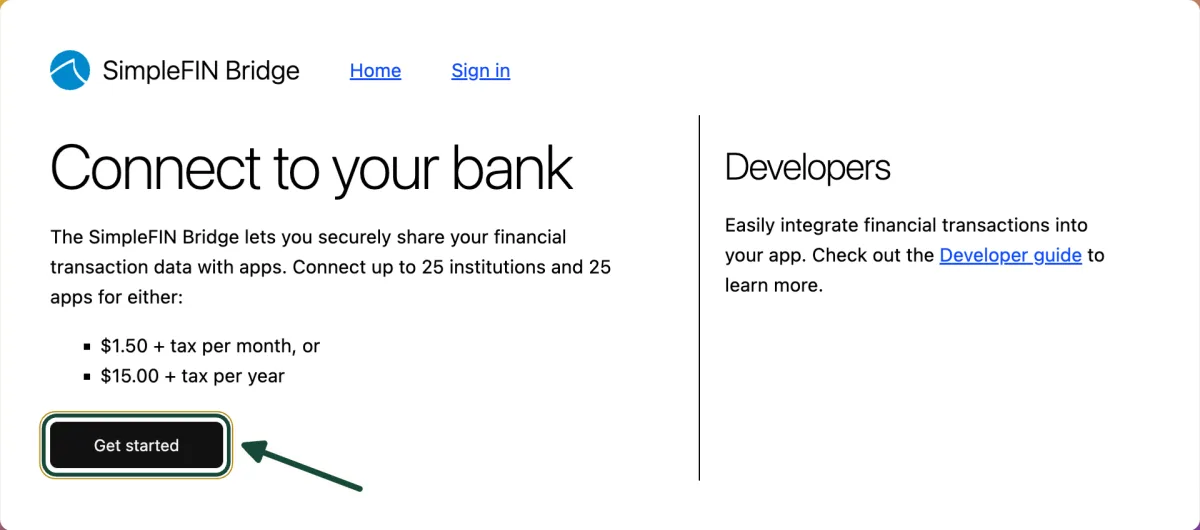
- Go to bridge.simplefin.org and click Get started. It may show as beta-bridge.simplefin.org; that’s the same service.
See this screen
- Enter your email, click Send sign-in email, and open the link they send.
See this screen
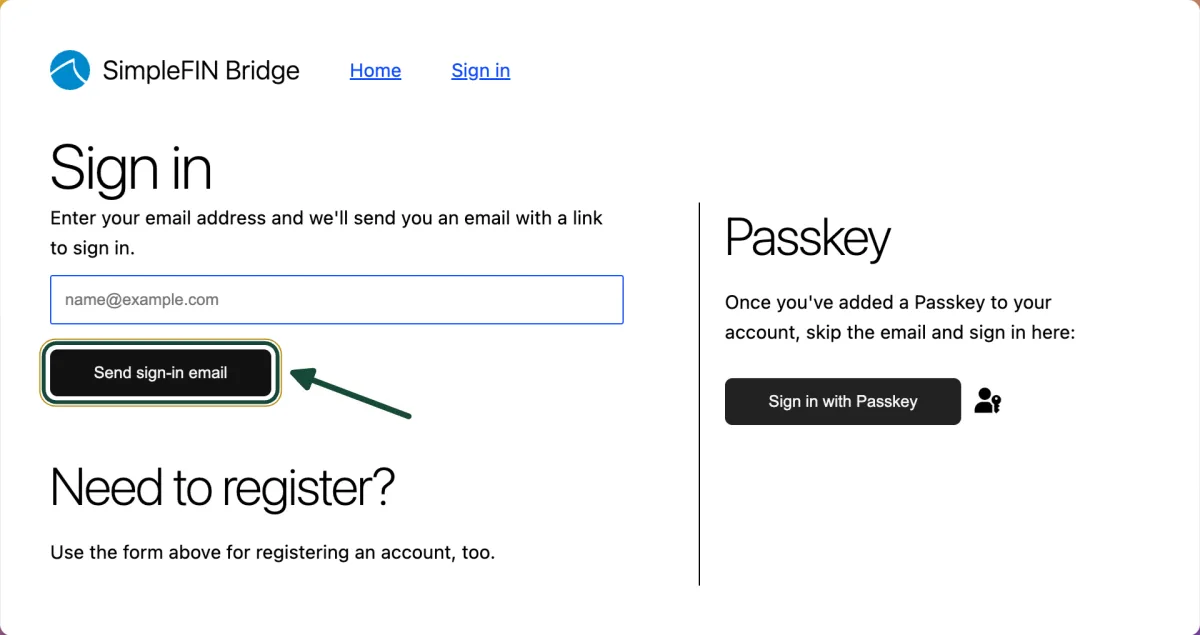
- On Financial Institutions, click New connection.
See this screen

- Type your bank’s name into the search box. The tiles below it are American banks.
See this screen
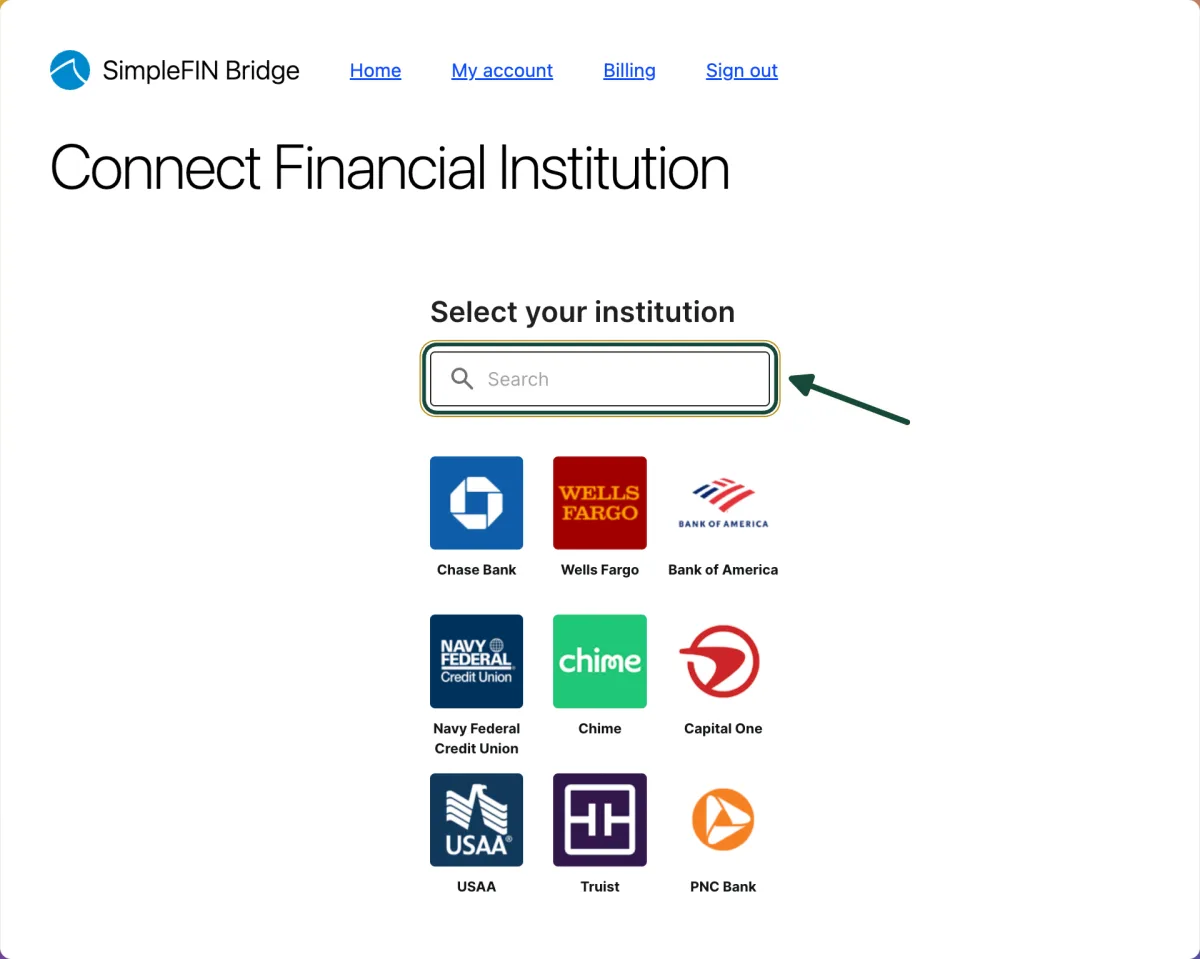
- Pick your bank and sign in on your bank’s own site. Repeat for each bank, and subscribe under Billing when SimpleFIN asks.
- Back on My account, under Apps, click New app connection.
See this screen

- Name it Last Loonie and click Create Setup Token.
See this screen
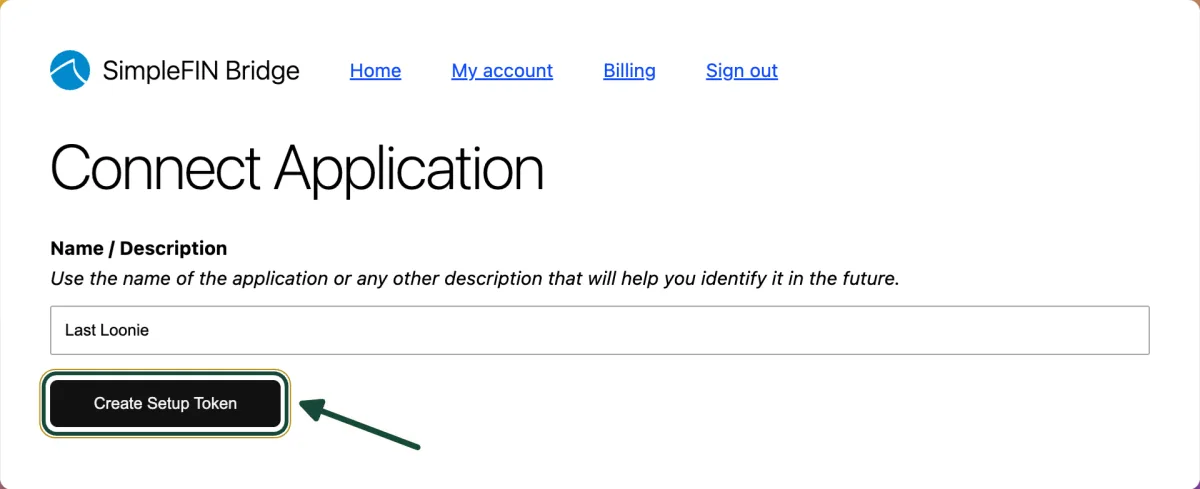
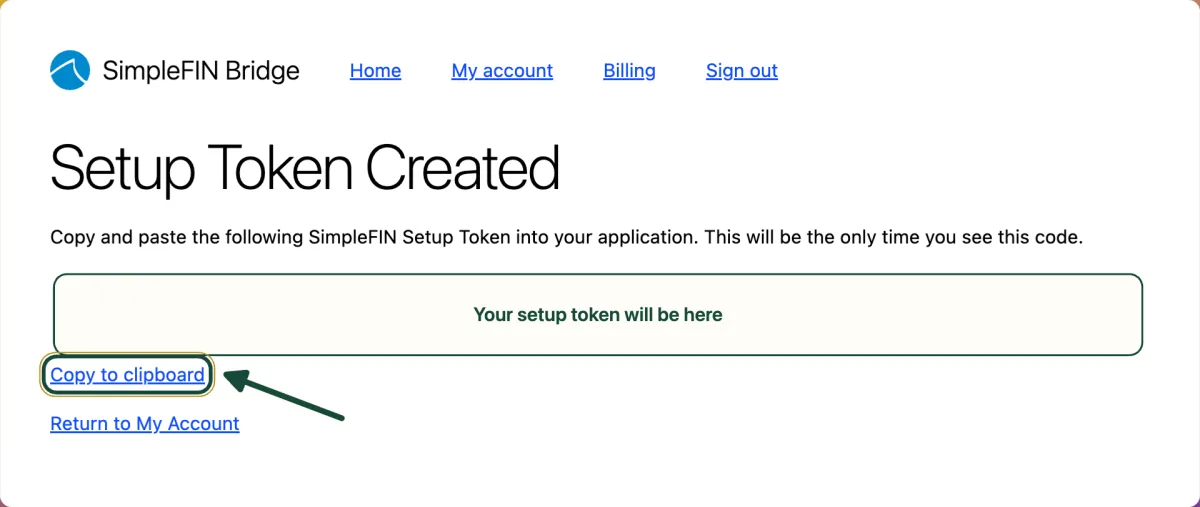
- Click Copy to clipboard. The token is shown once; if you lose it, make another.
See this screen
In Last Loonie
- Go to Accounts → Connect a bank, press Paste beside Setup token, then click Connect. Your accounts arrive within a minute or two.
See this screen
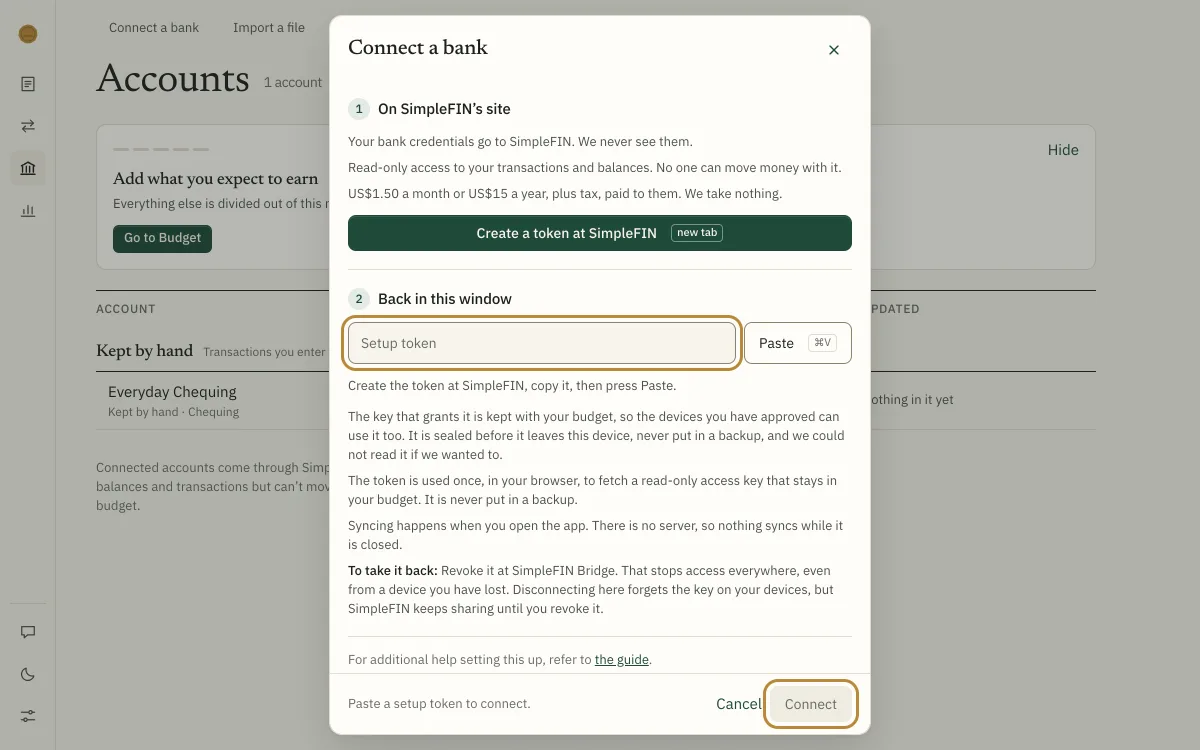
New transactions arrive when you open Last Loonie. Banks take a day or two to post a purchase, so this morning’s coffee shows up later in the week.
Step 3 · 3 minutesAdd your phone
Put it on your home screen
There’s no app store. Once it’s on your home screen, it opens like any other app.
On an iPhone
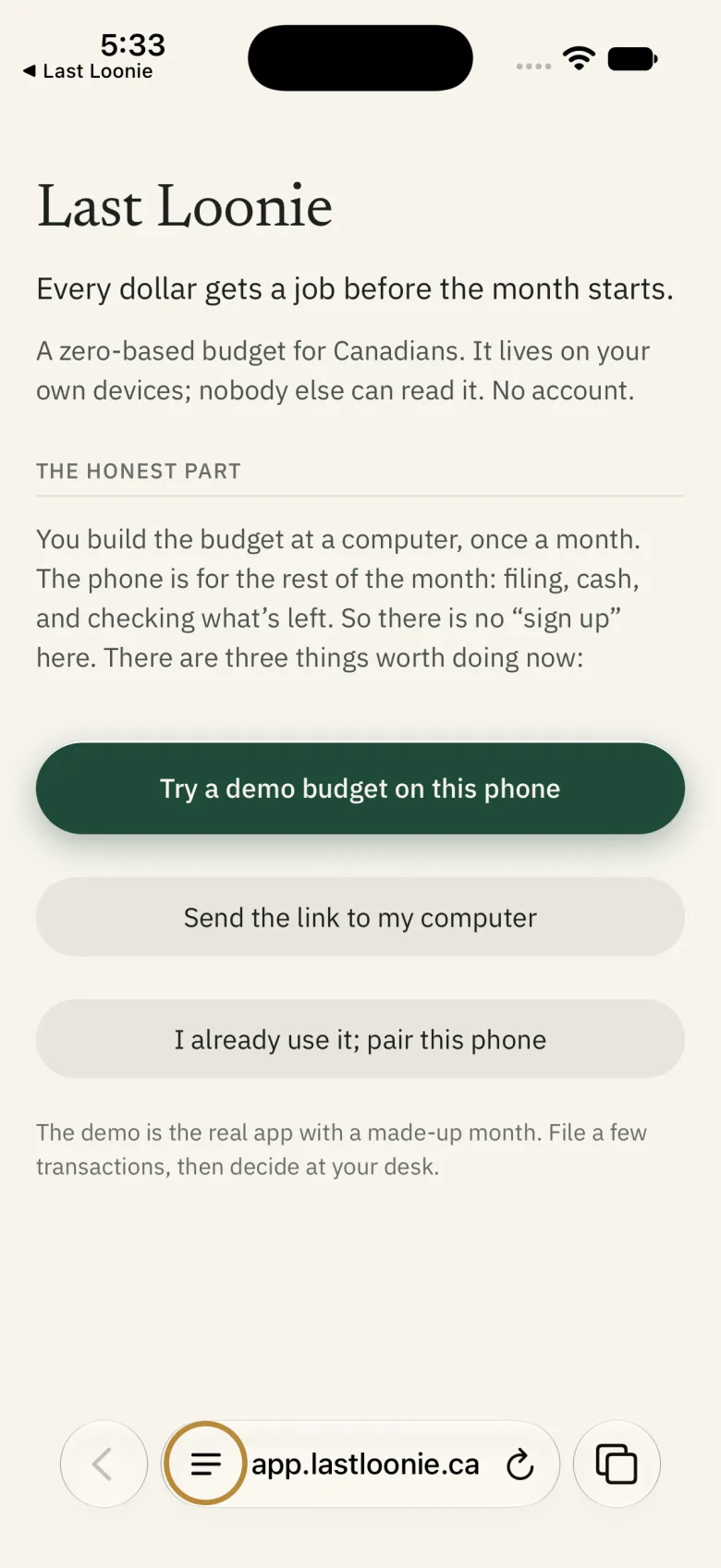
- Open app.lastloonie.ca in Safari and tap the menu button at the left of the address bar.
See this screen
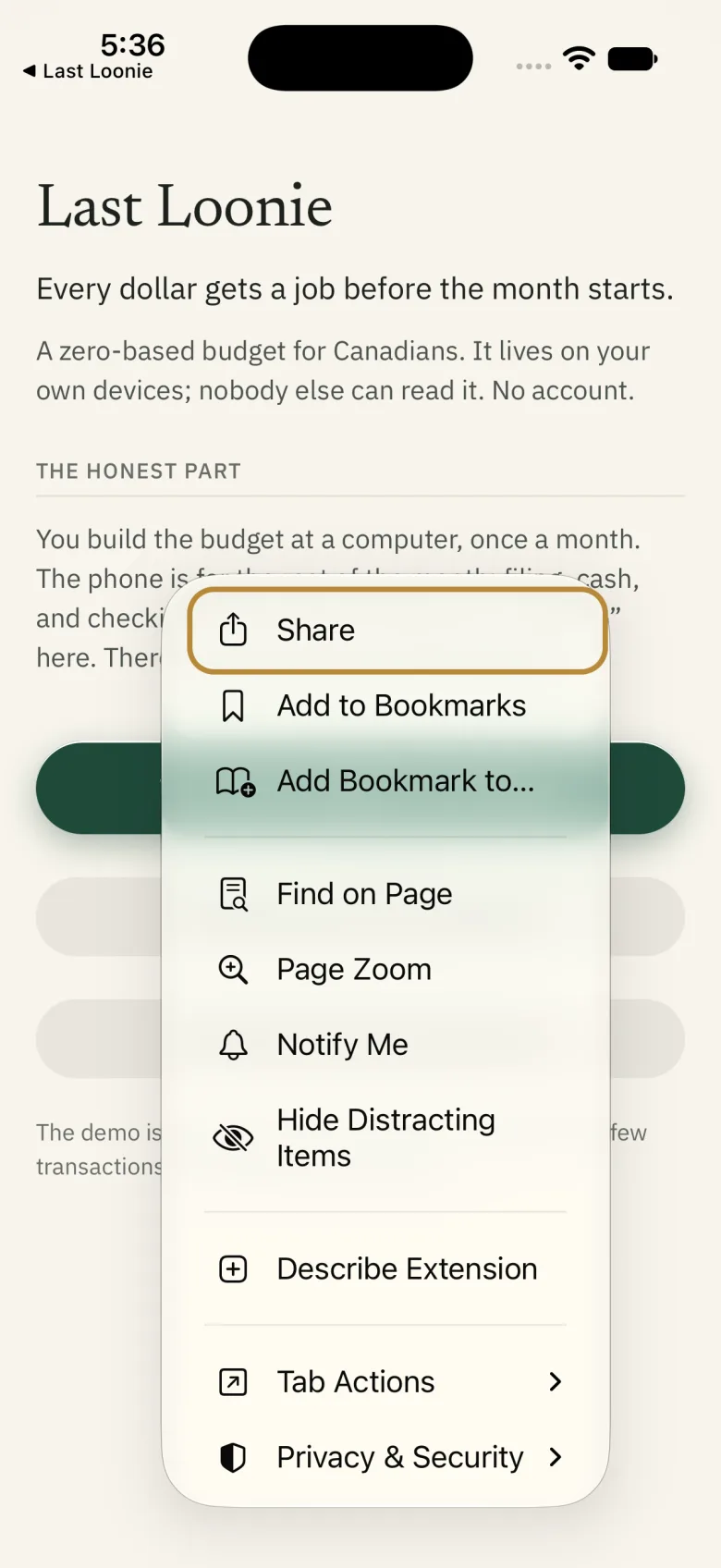
- Tap Share. On an older iPhone, Share is the square with an arrow in the bar at the bottom.
See this screen
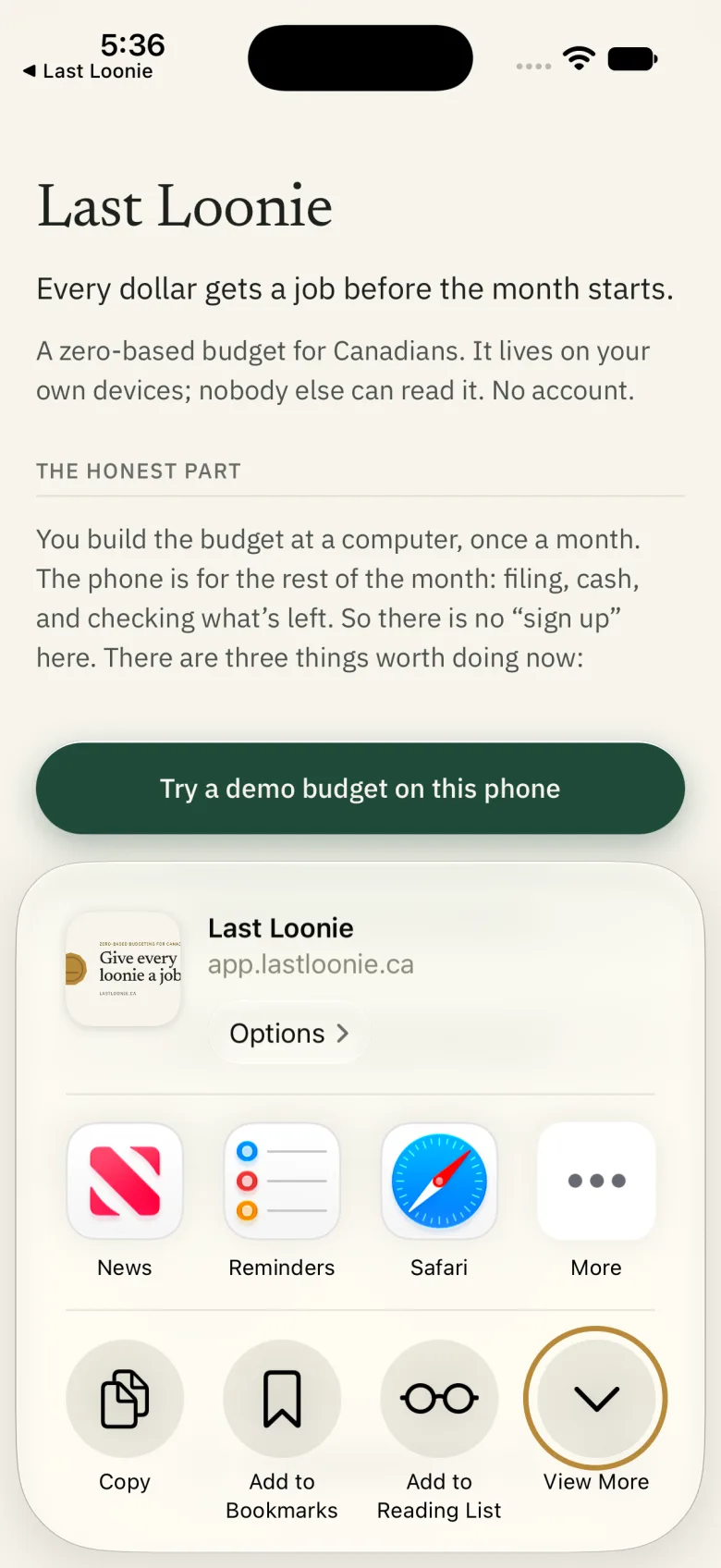
- Tap View More.
See this screen
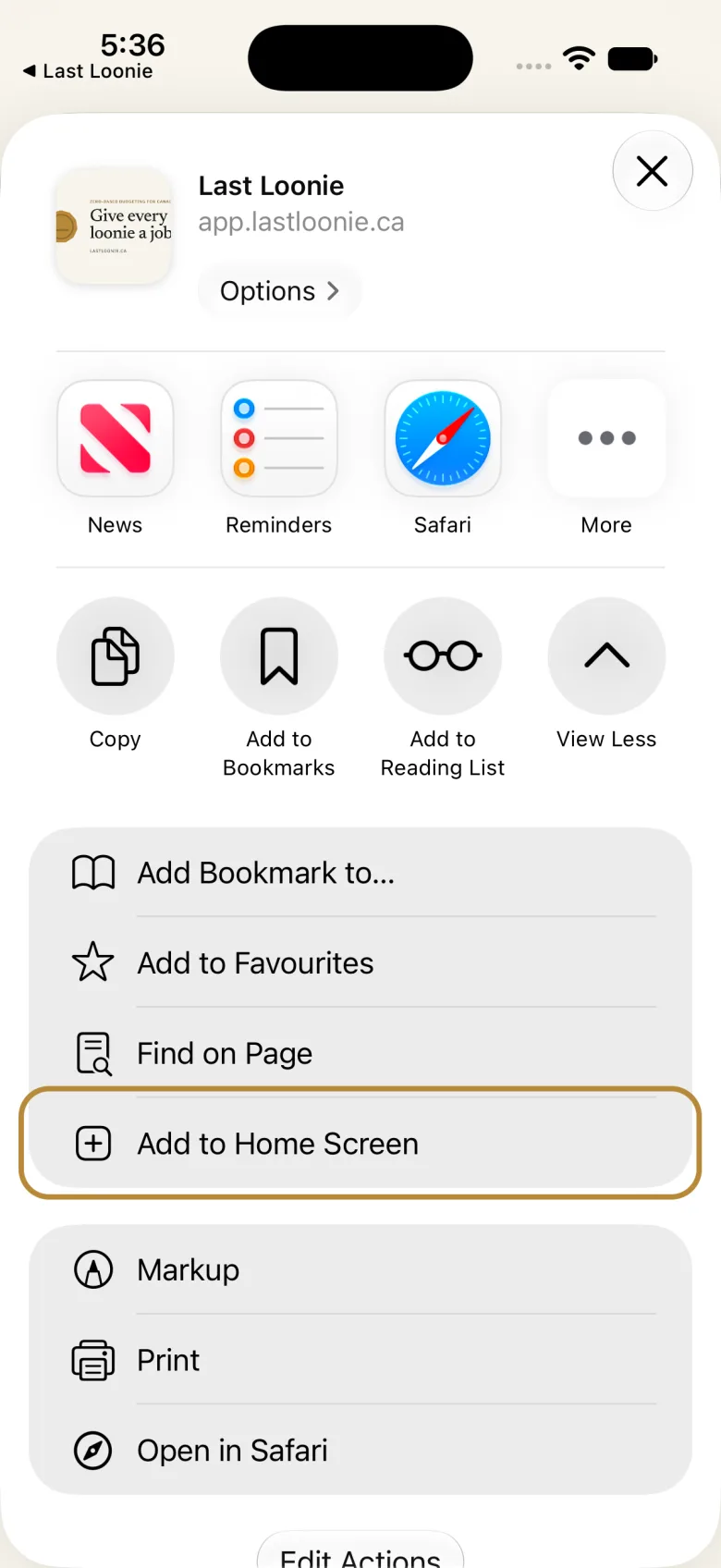
- Tap Add to Home Screen.
See this screen
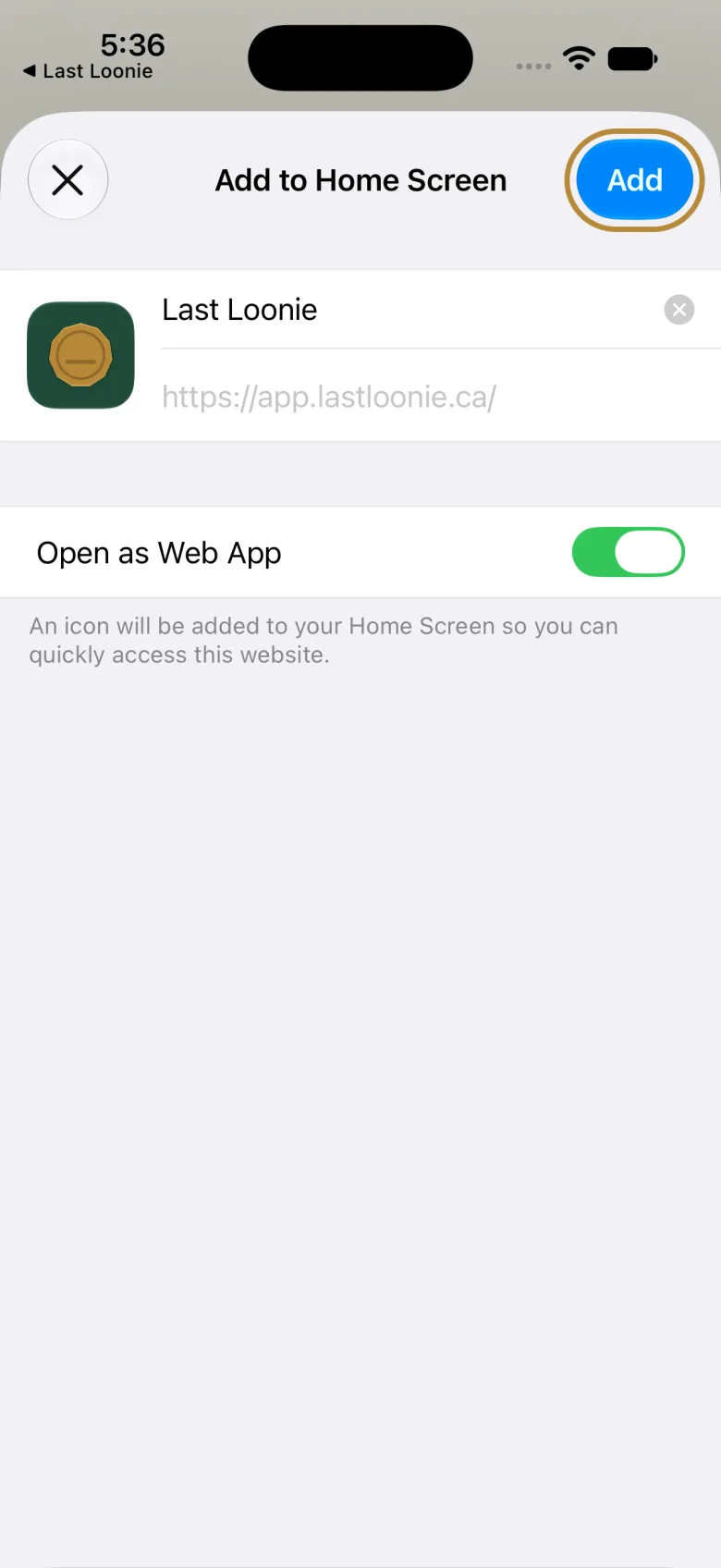
- Leave Open as Web App on and tap Add. From now on, open Last Loonie from its icon, not from Safari.
See this screen
On an Android phone
- Open app.lastloonie.ca in Chrome.
- Tap ⋮ at the top right.
- Tap Add to home screen or Install app, and confirm.
Add it to your budget
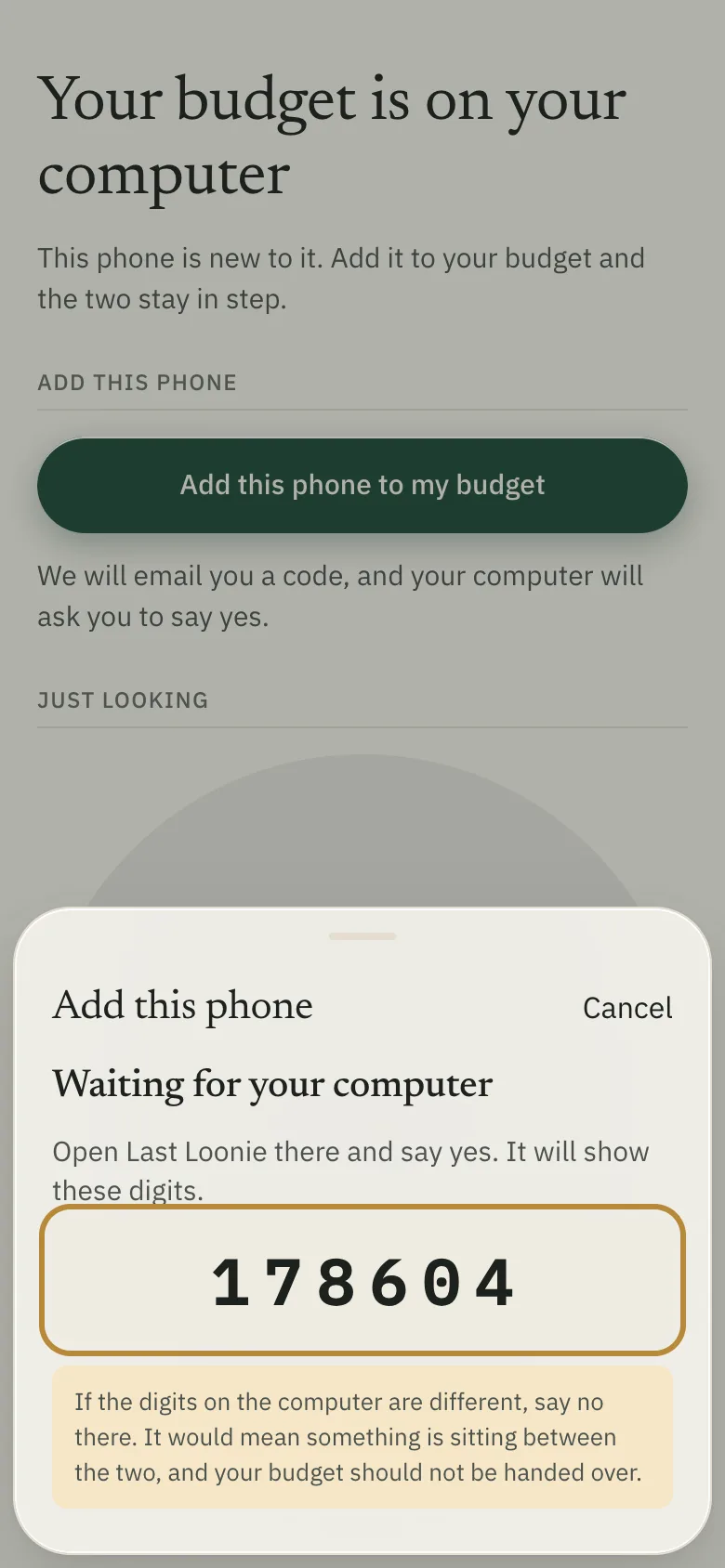
Keep your computer nearby with Last Loonie open. You’ll see two six-digit codes: one emailed to you, and one both screens show so you can check they match.
On your phone
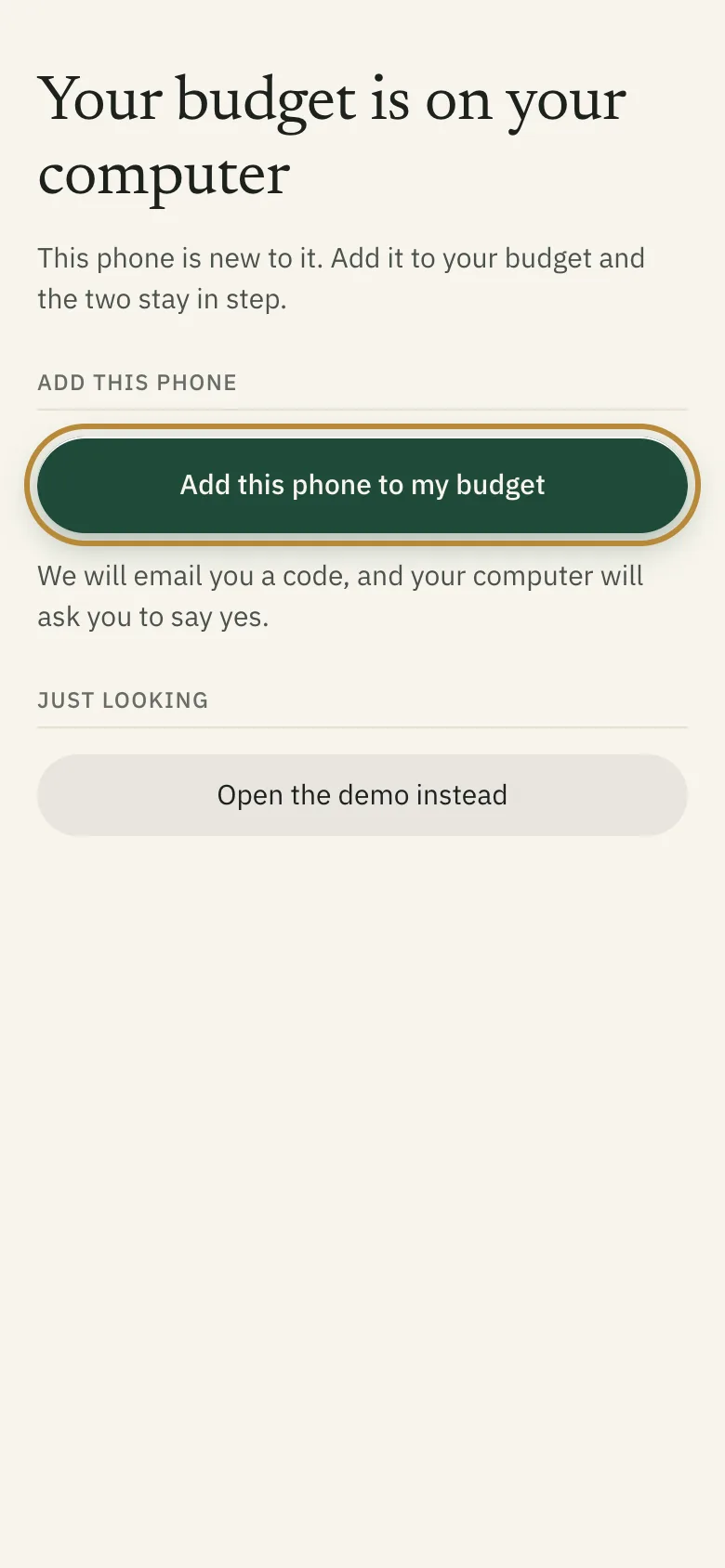
- Open Last Loonie from its icon and tap Add this phone to my budget.
See this screen
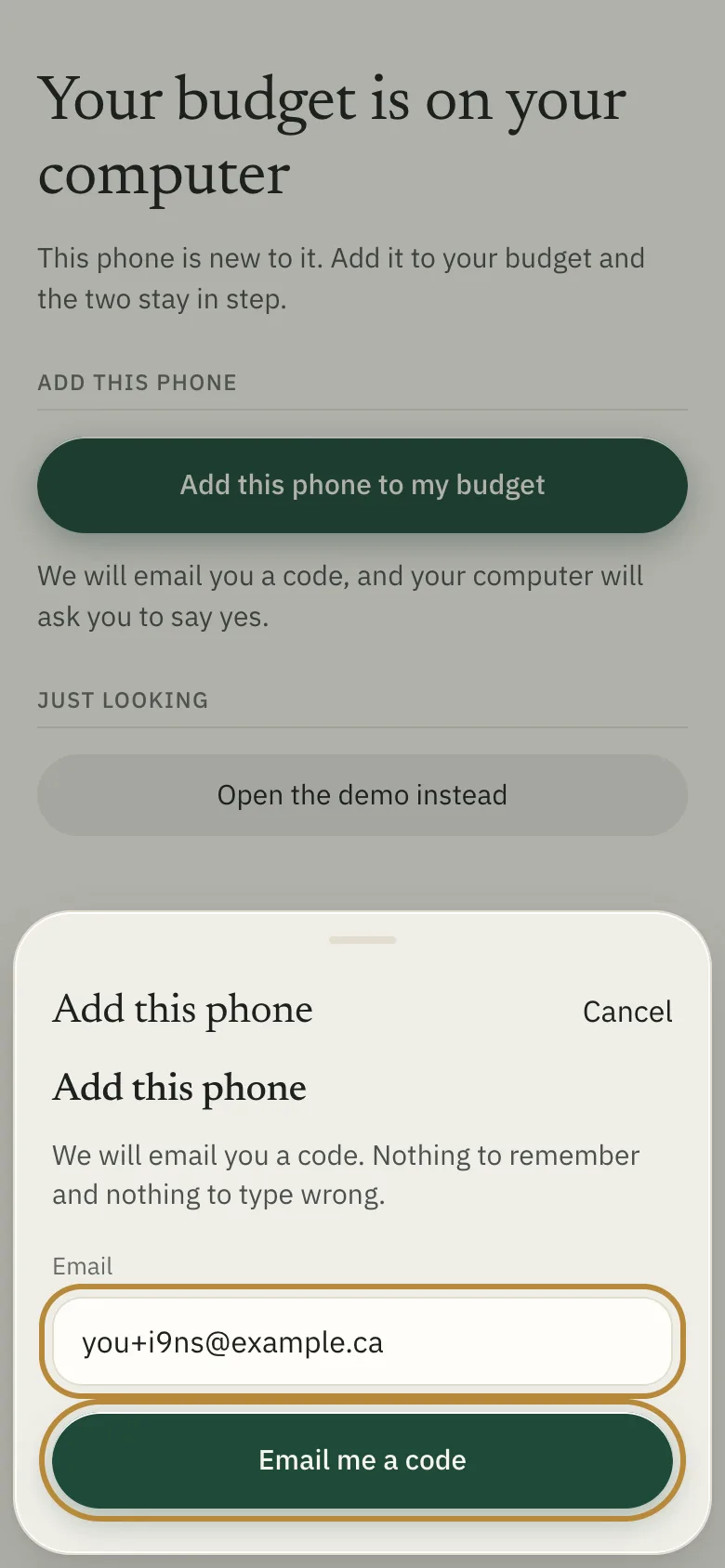
- Type the email you turned sync on with and tap Email me a code.
See this screen
- Type the six digits from the email into Sign-in code and tap Continue.
See this screen
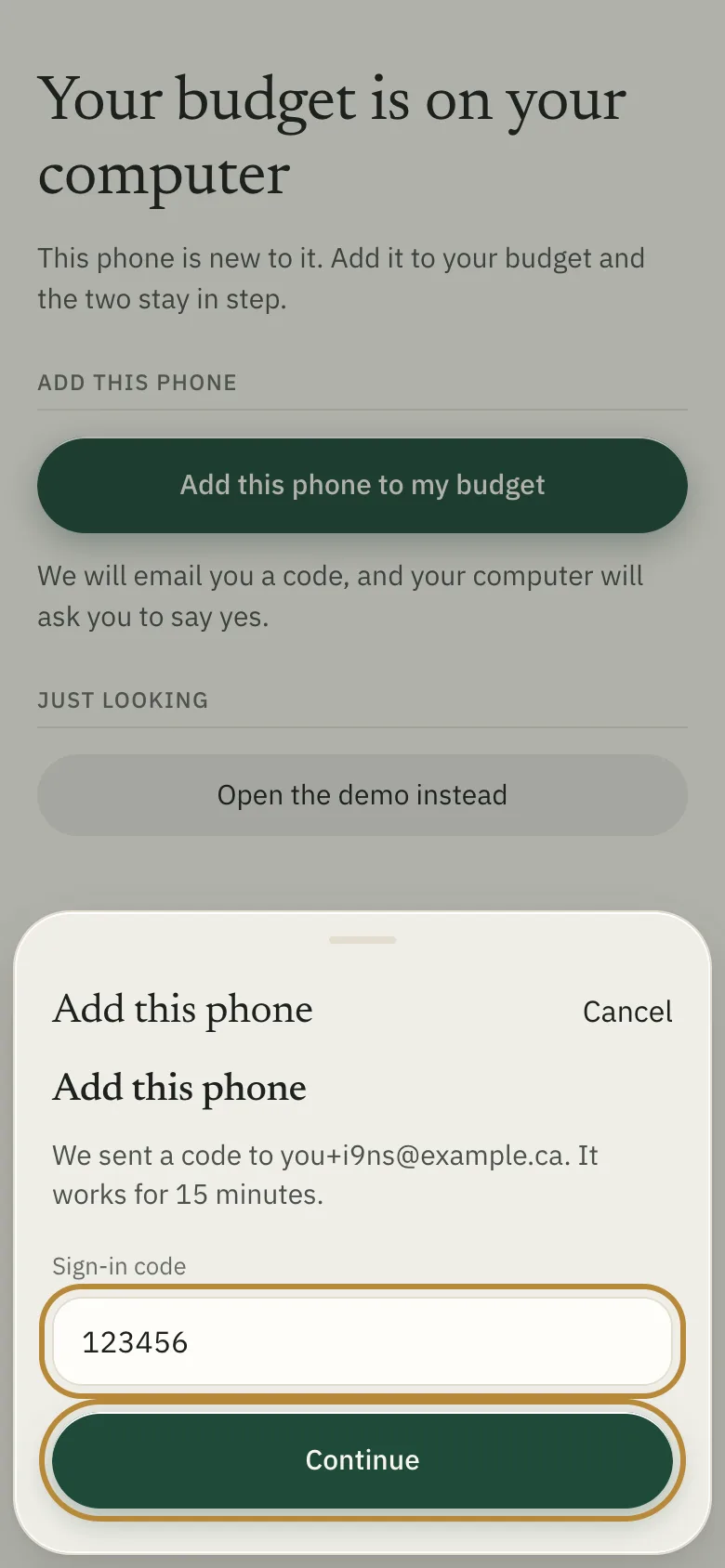
- It shows Waiting for your computer and six digits of its own. Leave it there.
See this screen
On your computer
- A device wants to join appears within about fifteen seconds. Check its six digits match the phone’s. If they don’t, choose Not me.
See this screen
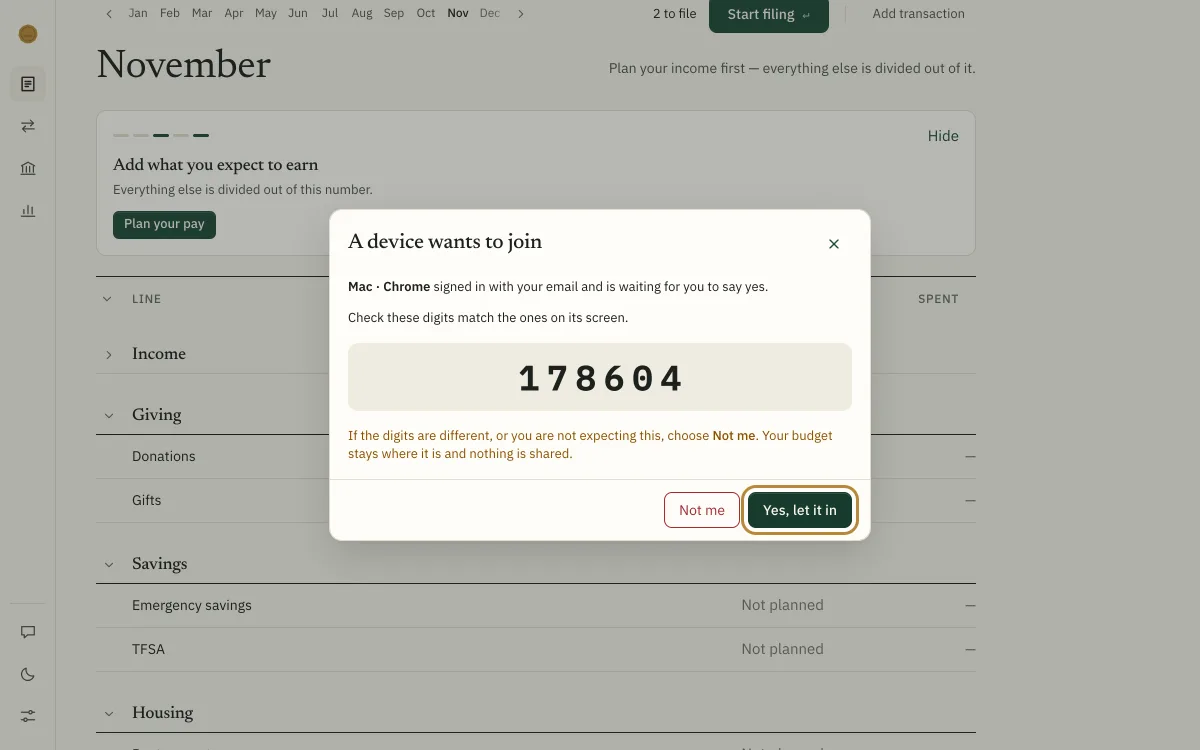
- Choose Yes, let it in. The phone finishes on its own.
If the phone asks about Two budgets, choose Use the budget from my computer. Why?
On the phone, Unpair and Erase are very different
Unpair this phone stops syncing and leaves its budget alone. Erase everything on this phone, while it’s paired, erases your other devices too. To clear only the phone, unpair first.
If something goes wrongStuck?
If Last Loonie is showing you one of these, the answer is a tap away.
- The sign-in code didn’t arrive
- "Start on your computer" or "Nothing to join yet"
- "Waiting for your computer", and nothing happens
- The six digits don’t match
- "That account is full"
- "Two budgets"
- I lost the setup token
Still stuck? Email hello@lastloonie.ca and tell us which screen you’re on and what you pressed last. We never need your recovery key, a sign-in code or a backup file, so please don’t send them.
Prefer to read everything? All the answers on one page.
Good to know
Keep a backup
Sync is a copy we hold. A backup file is a copy you hold. In Settings → Backups, Download a copy saves one dated file now, and Daily copy to a folder (Chrome or Edge) keeps one current as you work.
Restore from a file… replaces the budget on that device, so download a copy first. A backup doesn’t hold your bank key; connect the bank again after restoring.
What the phone does, and what needs the computer
Almost everything: file transactions with a swipe, edit or delete one, record cash, plan, move money between lines, cover an overspend, and add, rename or remove lines. It catches up each time you open it.
At the computer: turning on sync, connecting a bank, importing a file, managing accounts, saving a backup and using a recovery kit.
Removing a device
At your computer, open Settings → Backups → Sync across devices, find the device under Devices, and click Sign out. Nothing on it is erased. If you lost a phone and your bank is connected, also revoke the connection at SimpleFIN Bridge.
Stopping the bank connection
Revoke it at SimpleFIN Bridge. That ends it everywhere at once, and you don’t need to ask us. New transactions only arrive while Last Loonie is open, because no server of ours holds the key.
Your budget: app.lastloonie.ca · Bank connection: bridge.simplefin.org · Questions: hello@lastloonie.ca